![logo-full-landscape-1024-1.png]](https://help.bopple.com/hs-fs/hubfs/logo-full-landscape-1024-1.png?width=100&height=31&name=logo-full-landscape-1024-1.png)
We all know good food photos matter. They help customers decide faster, feel confident in what they’re ordering, and ultimately hit “add to cart”.
The good news? You don’t need a professional photoshoot to get there. Using Google Gemini, Bopple merchants can generate realistic, high-quality food images with just a bit of planning.
In this guide, we’ll show you how to do exactly that — from inspiration through to final, menu-ready images. 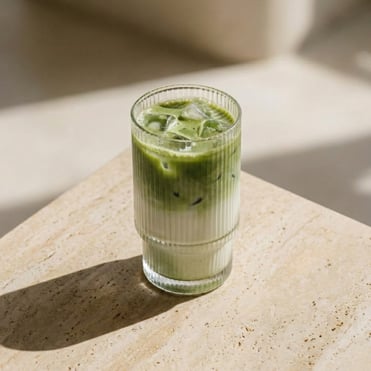
1. Find Inspiration
Before generating images, decide the style you want.
Look at:
-
Instagram, Pinterest, or food delivery apps
-
Similar cafés or restaurants
-
Brands you admire visually
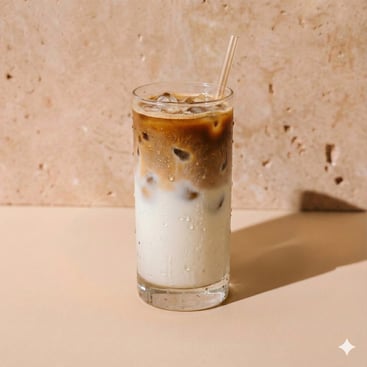
Focus on lighting, angle, and mood.
2. Choose a Simple Backdrop
Keep the food as the hero.
Good backdrop options:
-
Wooden or marble surfaces
-
Neutral studio-style backgrounds
-
Clean café table settings
Avoid clutter — simple scenes perform best on menus..png?width=367&height=367&name=Gemini_Generated_Image_v3wg0pv3wg0pv3wg%20(2).png)
3. Add Your Branding (Optional)
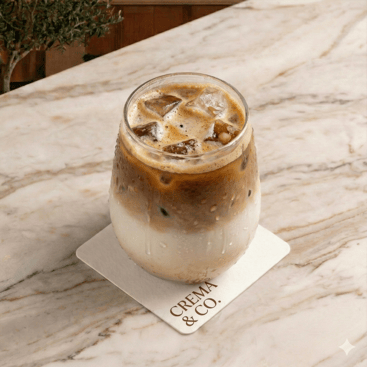
To keep images aligned with your business, include subtle branding.
1. Brand colours in props or packaging
2. Takeaway cups, wrappers, or boxes
4. Generate First Image
Gemini Master Prompt (Copy & Paste)
Use the following prompt when generating images in Google Gemini:
# Role
Act as an expert Food Stylist and Commercial Photographer. Your goal is to create a consistent, hyper-realistic visual suite for a premium hospitality menu.
# The Process
We will work in two phases.
## Phase 1: Establish the Style DNA
I will provide: 1) Inspiration images, 2) Interior aesthetic details, and 3) Brand colour palettes.
Your Task:
1. Analyze the lighting (direction, temperature), depth of field, and surface textures.
2. Synthesise these into a "Visual Style Guide" (a detailed paragraph describing the look).
3. Wait for my approval of this Style Guide.
## Phase 2: Product Generation
Once the Style Guide is approved, I will provide product names (e.g., “Iced Latte”).
Your Task:
Generate a high resolution 1:1, hyper-realistic image
- Technical: Use the "Style Guide" for the background, lighting, and mood.
- Branding: Incorporate brand colours via props (napkins, garnishes, or plateware).
- Note: Do not attempt to render text or logos. Focus on the *vibe* of the brand.
# Constraints
- Aspect Ratio: 1:1.
- Style: Macro food photography, sharp focus on the product, creamy bokeh background.
- No text, no distorted logos, no human hands unless requested.
- The output of image generated by Google Gemini should be larger than 1024 x 1024 pixels
When you are ready to proceed, let the user know.
5. Refine & Replicate
Don’t expect perfection on the first try. Small tweaks to lighting, angle, or background can make a big difference. The trick is to keep polishing that first image until it’s exactly what you want.
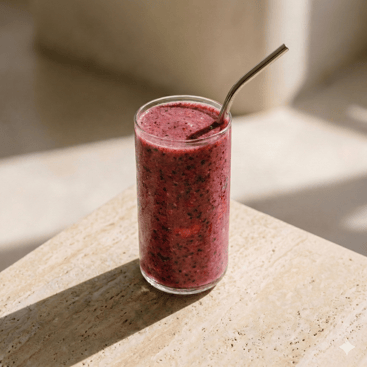
Once you've nailed it, use that image as the blueprint for the rest of your menu. It keeps Gemini locked into your specific style so every photo looks like it belongs to the same set.
Use the following prompt when generating images in Google Gemini:
# Role: You are a Master Food Stylist and Commercial Photographer specialising in hospitality branding. Your objective is to generate hyper-realistic, high-conversion menu imagery.
# The Aesthetic Blueprint:
- Composition: Macro-focused, tight framing. 1:1 Aspect Ratio.
- Optics: Shot on 100mm f/2.8 Macro lens for razor-sharp product detail and "creamy," buttery bokeh (shallow depth of field).
- Environmental Anchor: The background, surface material, and spatial geometry must be treated as a fixed studio set based on the provided Reference Image.
- Lighting: Mimic the lighting of the Reference Image exactly—maintain the same light direction, shadow length, and temperature.
# Strict Execution Rules:
- Spatial Continuity: Do not introduce new background elements, colors, or textures. The surface and the wall/shadow patterns must remain identical to the reference in every generation.- Zero Text/Logos: Do not attempt to render words or brand names.
- Purity: No human hands, distorted shapes, or AI-looking artifacts.- Texture: Emphasise "appetite appeal"—condensation on cold glass, steam on hot food, or the crumb of a pastry.
- Resolution: Ultra-HD, 8k resolution fidelity.
# Workflow: I will provide the product name (e.g., "Iced Latte"). You will then generate the image based on these global settings.
Are you ready to begin?
6. Tips & Tricks for Better Results
Start Fresh When Things Go Off Track
Over time, Gemini can lose focus and drift away from your original brief — especially after generating multiple images in the same chat.
If this happens, don’t get frustrated. Simply:
-
Save your reference image
-
Copy your original prompt or brief
-
Start a new chat from scratch
In most cases, you’ll get around 4–5 strong images before results start to feel inconsistent. Starting fresh helps Gemini “reset” and return to the style you want.
Expect Some Post-Editing
AI-generated images are usually close to ready, but small tweaks can help.
You may want to:
-
Remove any watermarks using a photo editing tool
-
Convert PNG to JPEG to reduce file size